
Improved Mode Scanability by Replacing the Switch with a Toggle
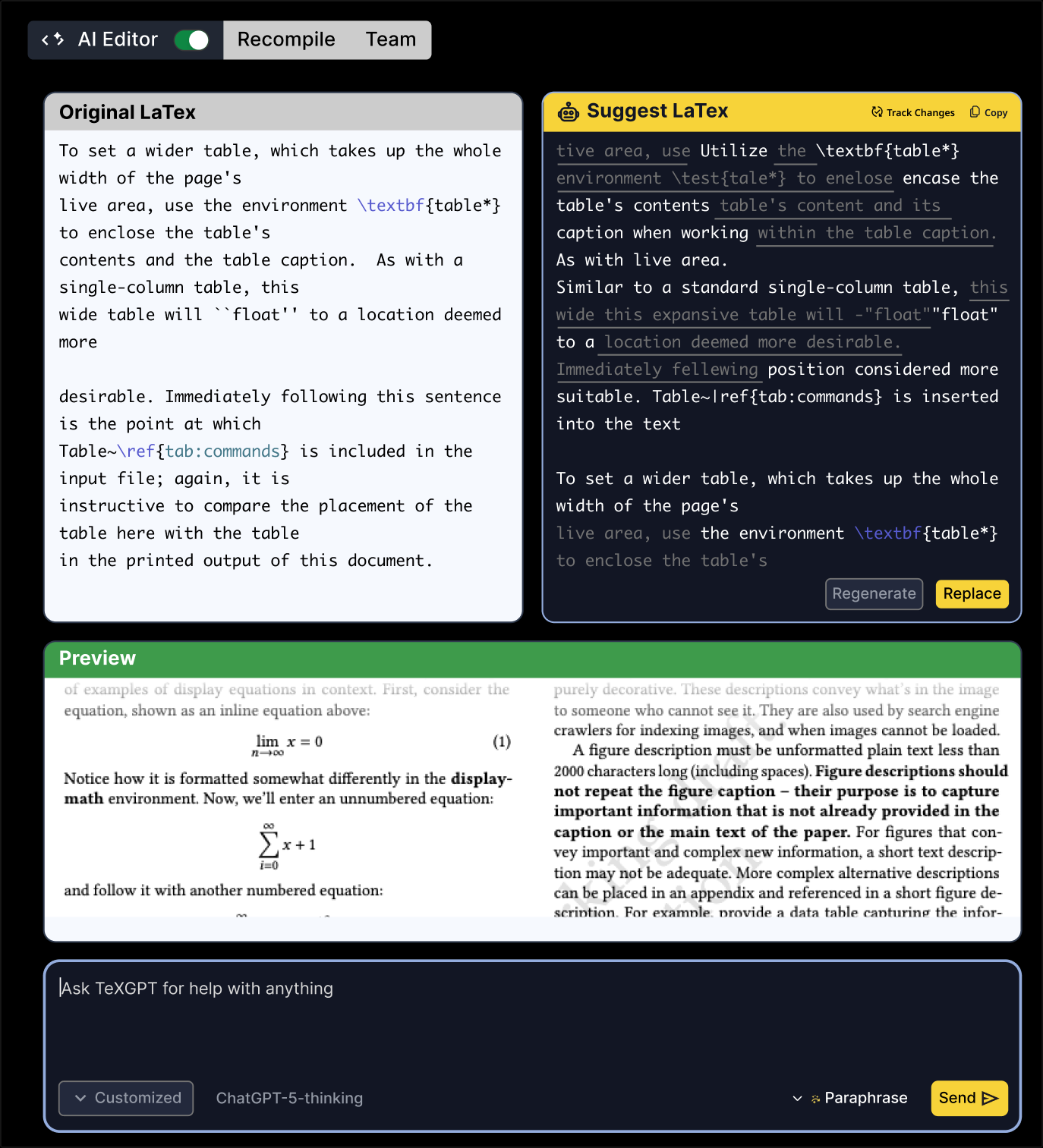
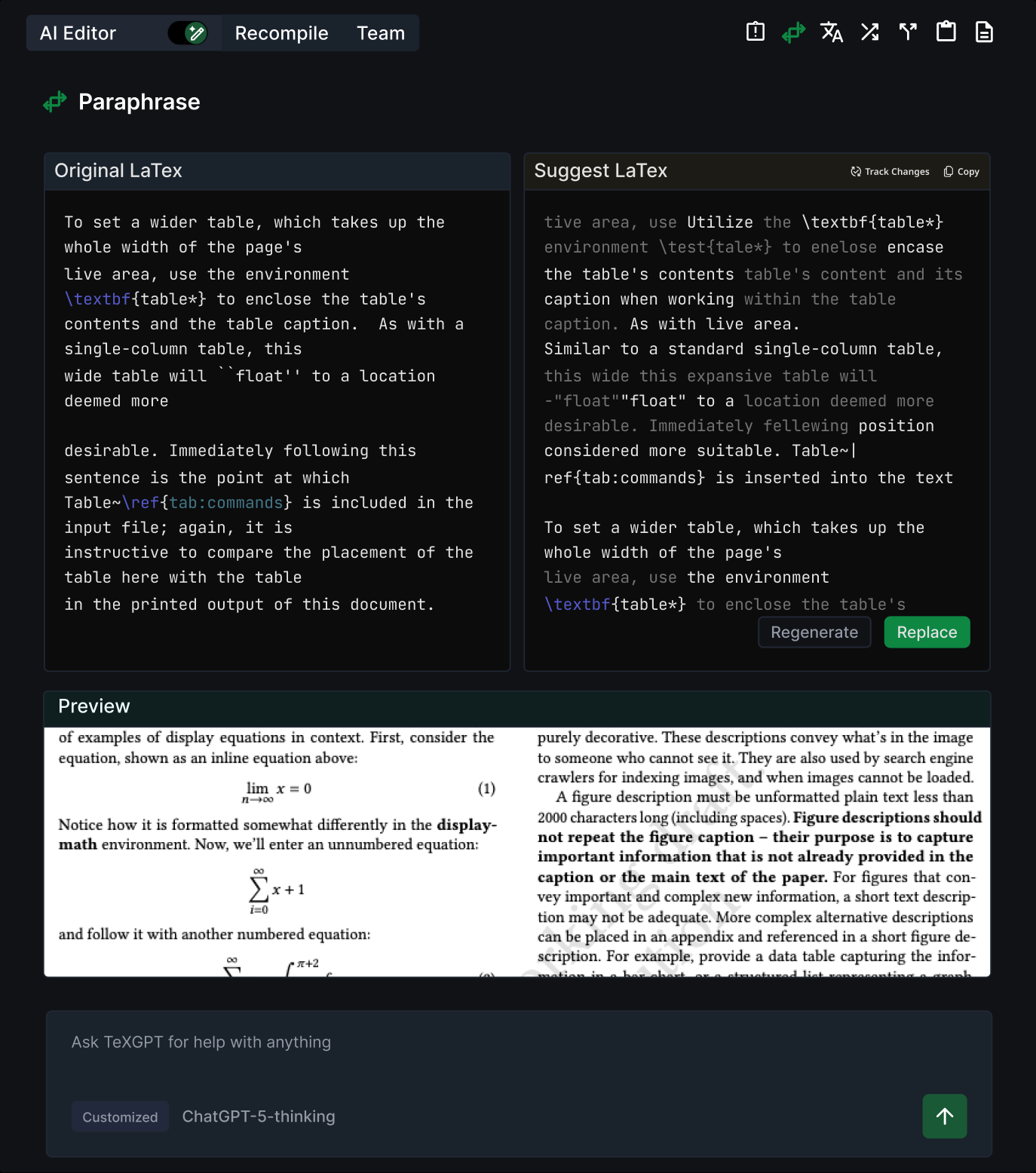
I replaced the switch button with a toggle to give users a more immediate sense of switching between the two AI modes.
Before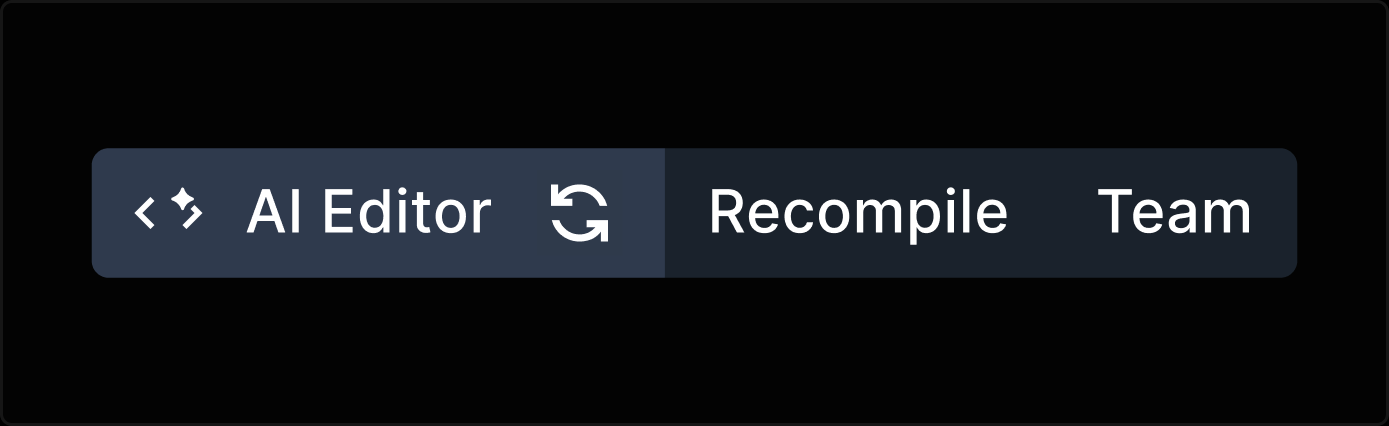
After
UI/UX Design · 2025
Consolidating AI Features in a LaTeX Editor
01 What is Overleaf?

Overleaf is a browser-based LaTeX (code) editor for academic and technical documents.
Similar to Google Docs, but instead of directly editing text, users make changes by writing code.
02 Feature Background
AI features that generate new content, including title, abstract, keyword, and equation generators.
AI feature for a particular sentence, that users must highlight to access. Includes paraphrase, translate, change style, split / join,summarize, explain.
03 Problem
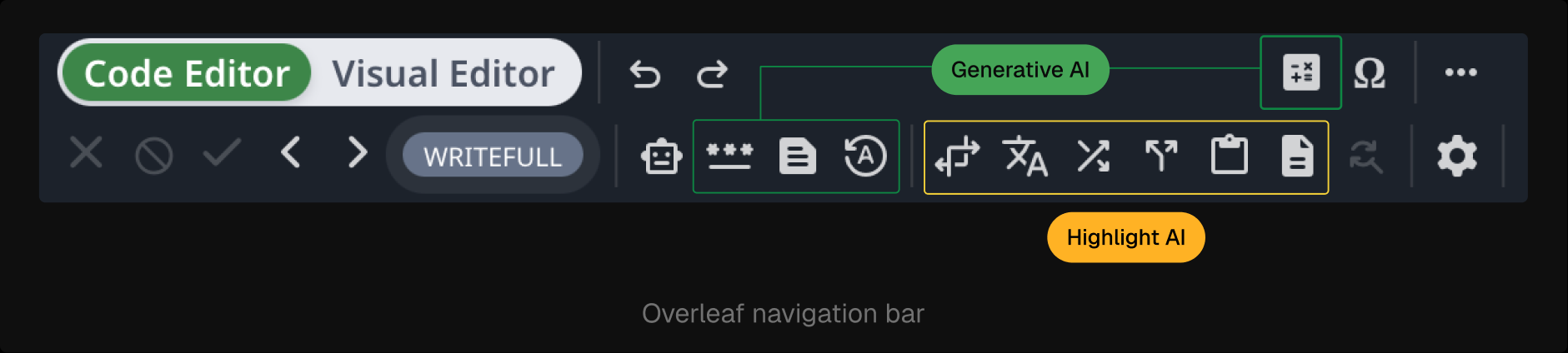
Scattered AI entry points make navigation difficult, revealing the opportunity to consolidate these features into a single space.
Poor differentiation between generative and highlight-level AI, making it hard to tell which features are AI.
The AI features in the robot button's submenu are visually cluttered, making it difficult for users to distinguish them from other AI options.
04 Design Question
05 User research
“
AI entry points scattered and visually inconsistent, which made navigation confusing and the robot button's submenu feel redundant.
Min, M.S., Applied math
“
It is difficult understand how to use AI features due to fragmented entry points and unclear mode signaling.
Kim, Ph.D., Statistics
06 Design Solution
| Approach | Concept | Pros | Cons |
|---|---|---|---|
| 1 | Dedicated panel for AI features | Consolidates AI actions in one place and makes switching between Generative and Highlight modes glanceable. | Adds a new surface that can compete with the editor for attention and screen space. |
| 2 | Consolidate AI entry points | Reuses the familiar Robot button as a single entry point so both AI modes live in one flow. | Mode choice can feel nested inside the button, which may slow discovery for first-time users. |
07 Approach #1 — Switch Between Two AI Modes
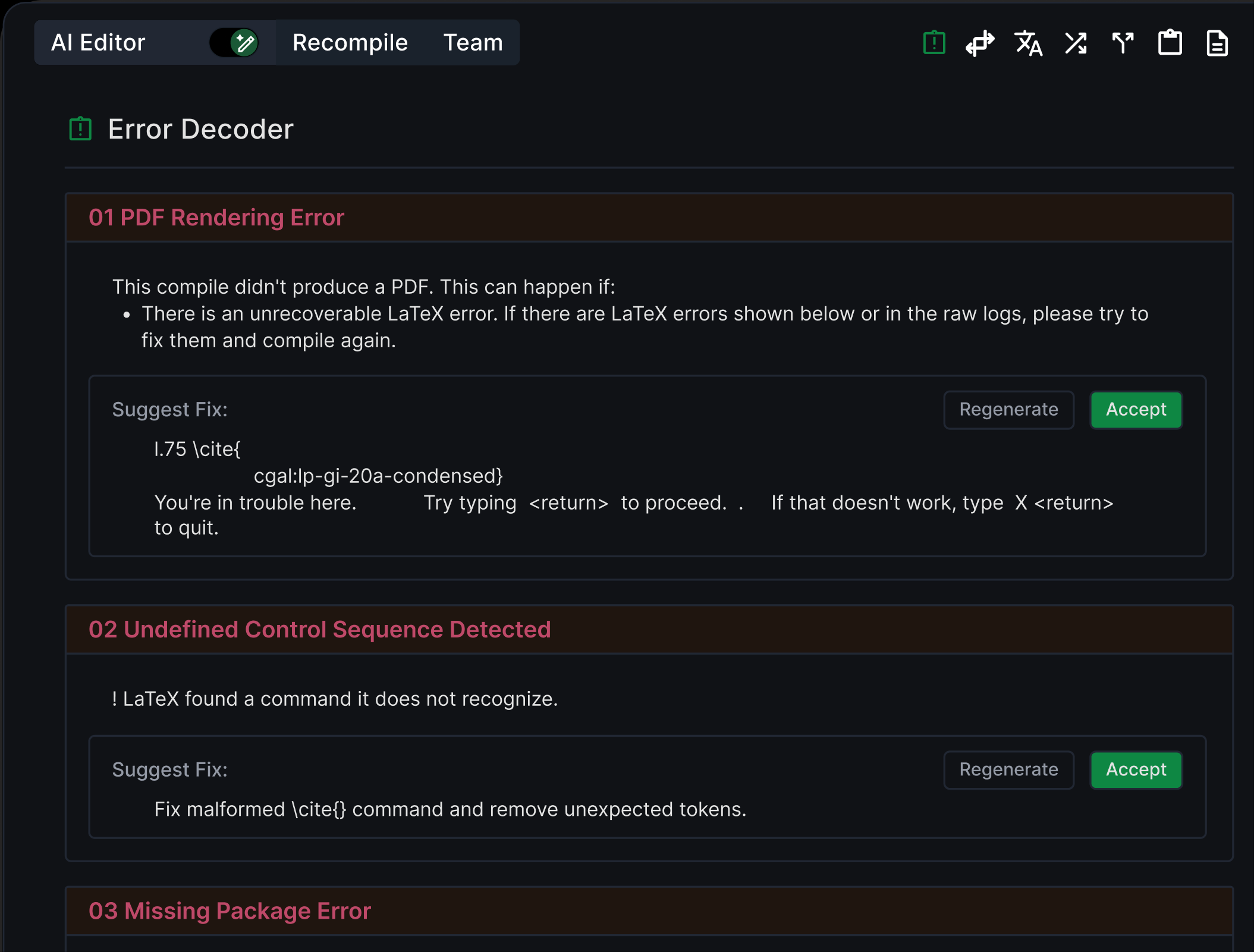
08 Iterations — Approach #1
Before finalizing the design, I refined the color usage and components to improve visual consistency and reduce eye strain, making the panel more intuitive to use.
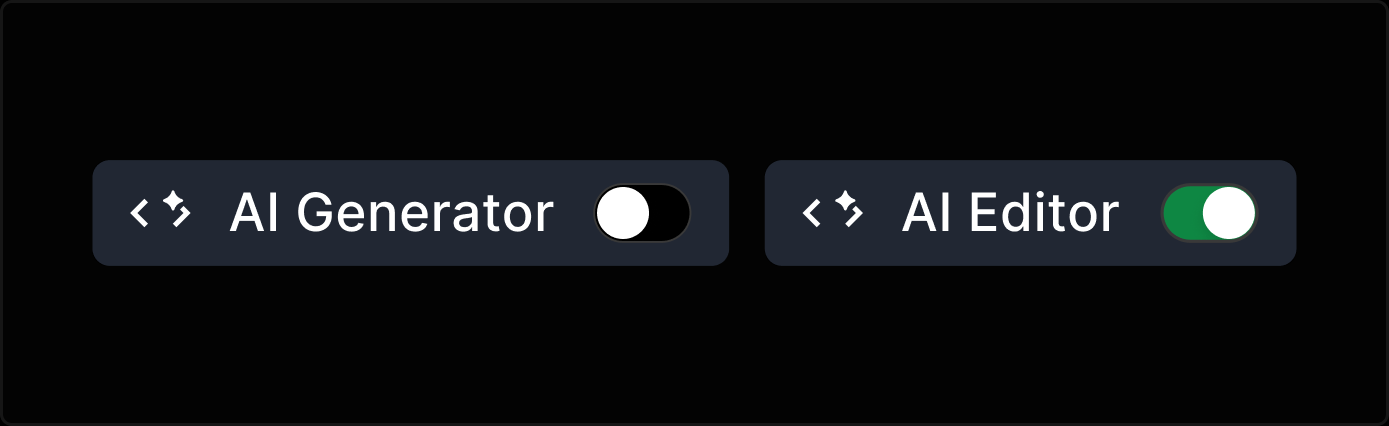
I replaced the switch button with a toggle to give users a more immediate sense of switching between the two AI modes.
I designed a toggle for generative and highlight-level AI, using mode-specific icons to improve glanceability and quick recognition.

I refined the UI to reduce eye strain for users, as Overleaf is typically used for long, extended work sessions. To improve visual comfort, I reduced the contrast between the background and text.
09 Final Experience — Approach #1
For the final deliverable, I separated generative and highlight-level AI into a larger panel, with each button placed in the top-right corner. Generative AI mode is set as the default, and the toggle allows users to switch to highlight-level AI mode.
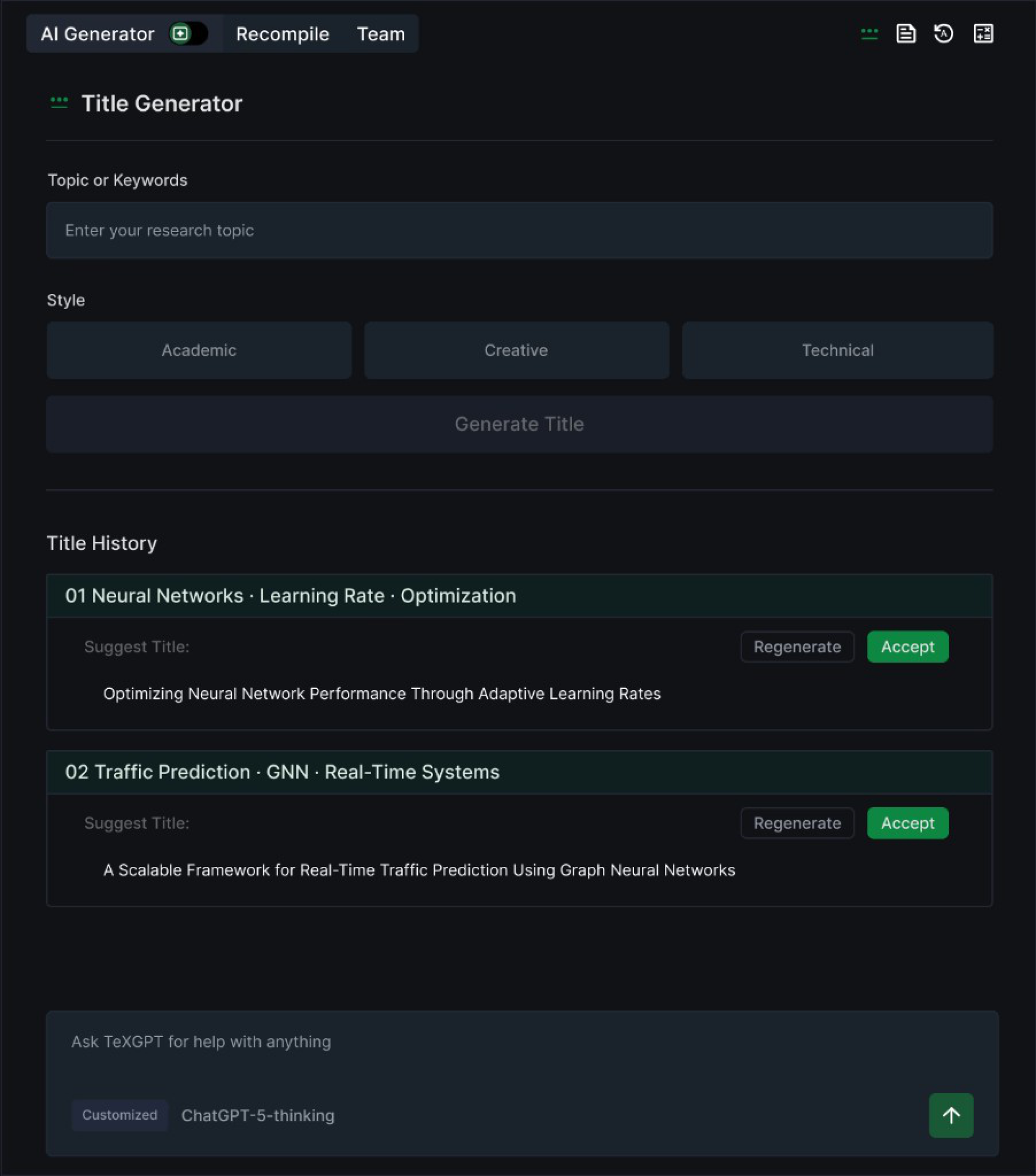
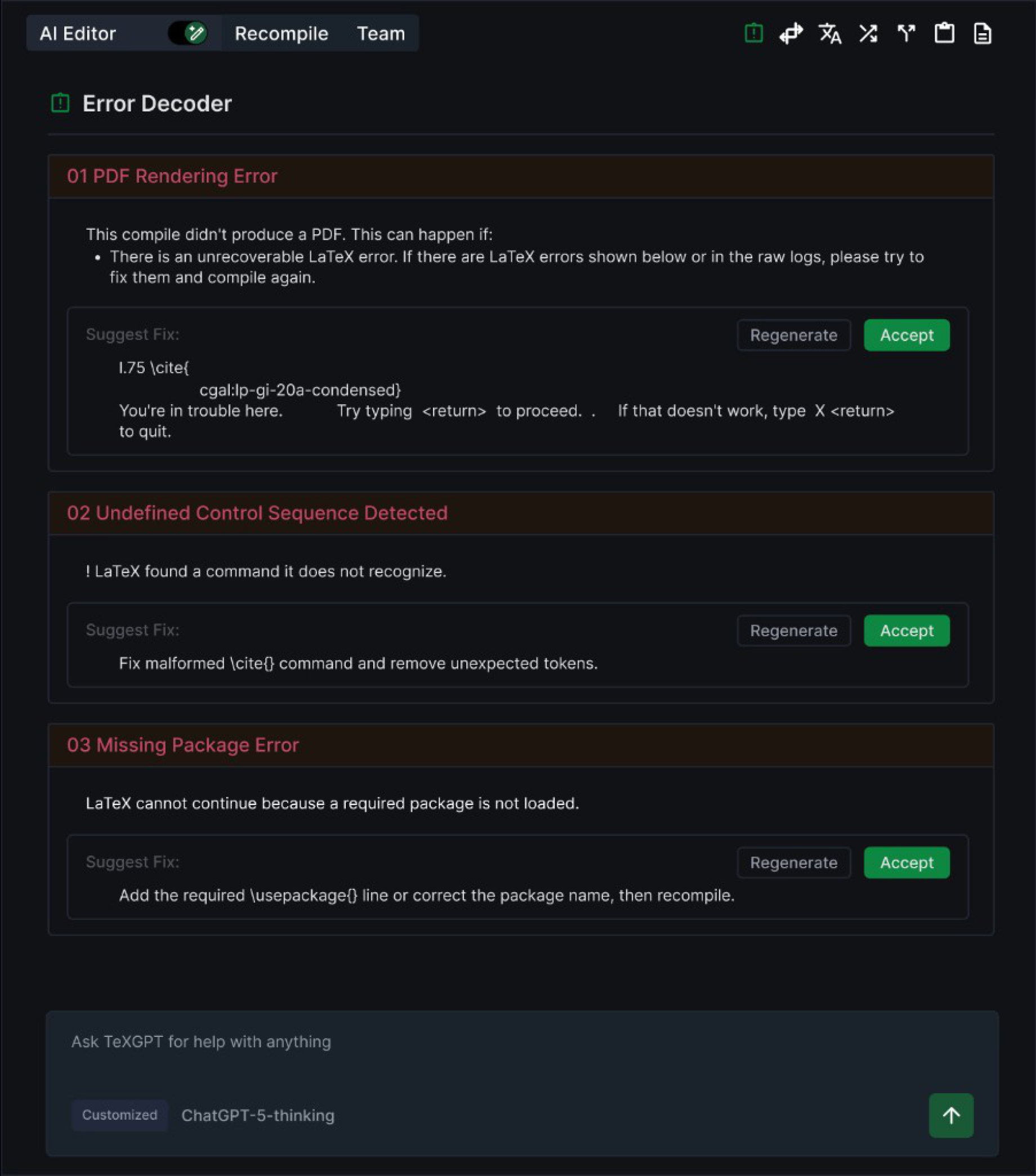
On the right top of the panel, users can navigate diverse AI features and directly switch between two AI modes using the toggle.
10 Approach #2 — Consolidate Scattered AI Entry Points
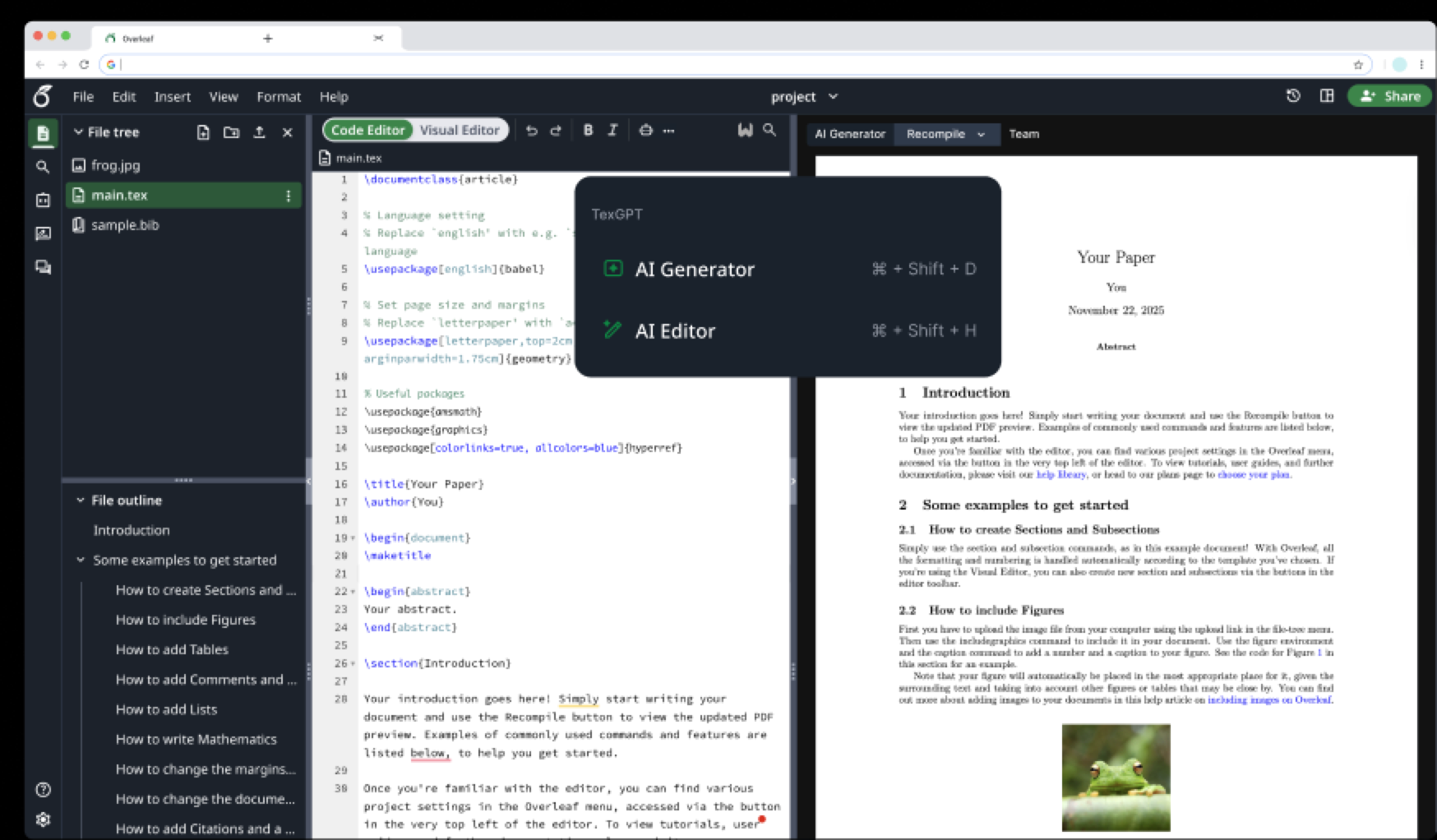
11 Iterations — Approach #2
I added keyboard shortcuts to the robot button's submenu to improve accessibility for users navigating AI features with a keyboard.

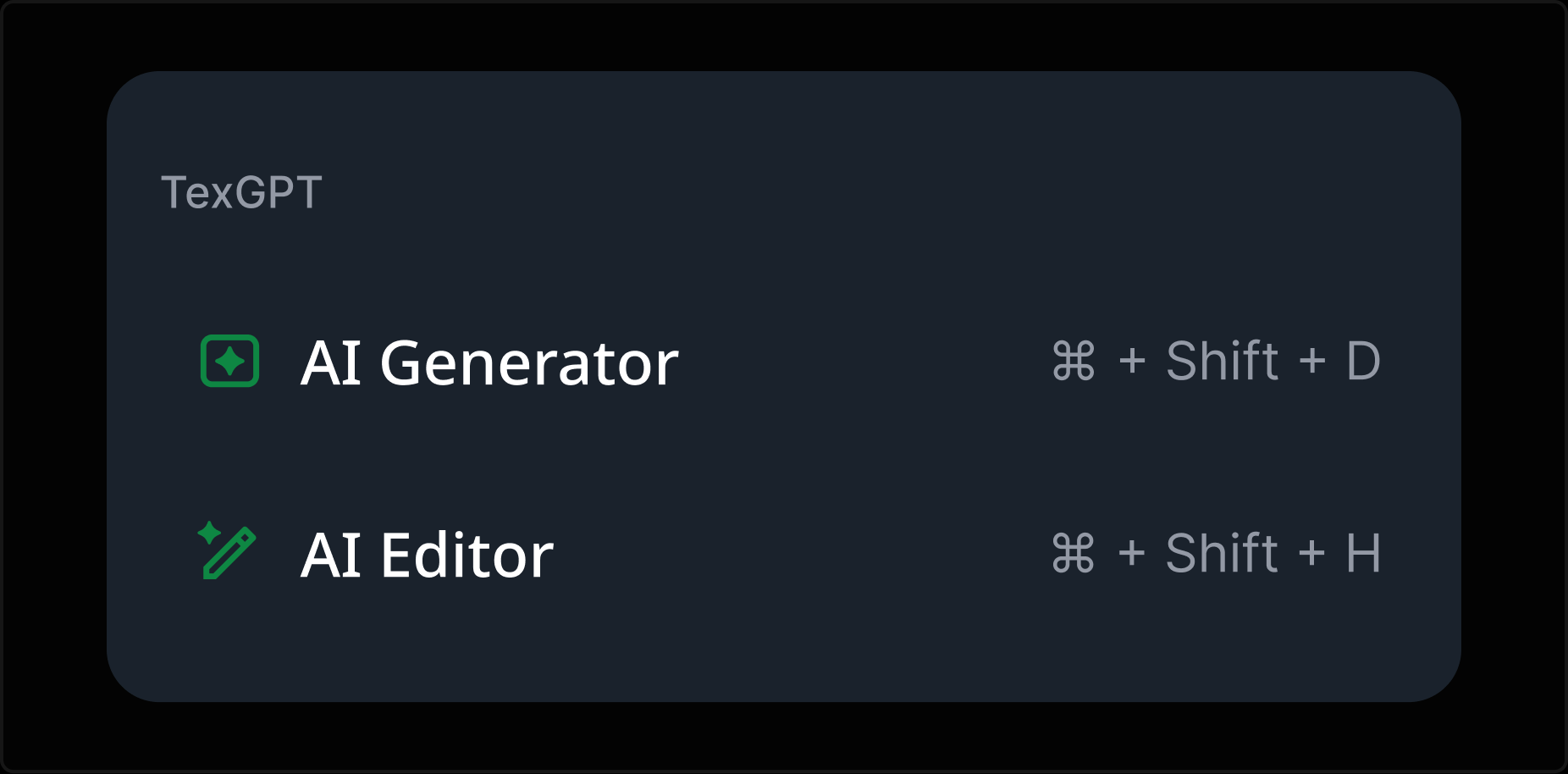
12 Final Experience — Approach #2
The robot button lets users choose between Generative AI and the AI Editor, reducing confusion caused by multiple features being mapped to a single button.
13 Final Demo
14 Usability Testing
Conducted virtual moderated usability testing with 5 participants including 3 task-based scenarios and post-task questionnaires.
15 Outcome
Conducted virtual moderated usability testing with 5 participants including 3 task-based scenarios and post-task questionnaires.
3.7 → 4.6
Increase in user satisfaction
51.7%
Reduced time to locate AI features
(Compared to the original Overleaf)
16 Reflection
Working on the Overleaf redesign made me rethink how AI entry point could be better optimized into code-based writing workflows. I realized that the main issues do not come from being overwhelmed by AI itself, but by fragmented entry points can confuse users.
I learned about…
This project gave me an opportunity to consider accessibility throughout the design process. Since it is a web-based platform, there was a wide range of options, including keyboard shortcuts, a focus ring, and color contrast. If I had more time, I would add a focus ring throughout the design.
Since our team members were in different time zones, it wasn't easy to adjust each member's schedule. To address this, our team tried to respect each other's schedules and ensured to bring finalized tasks to the weekly meeting.
I learned how to think above the visual design by considering the design system. Considering the design system not only results in a more consistent design but also reduces the communication gap with developers.


